
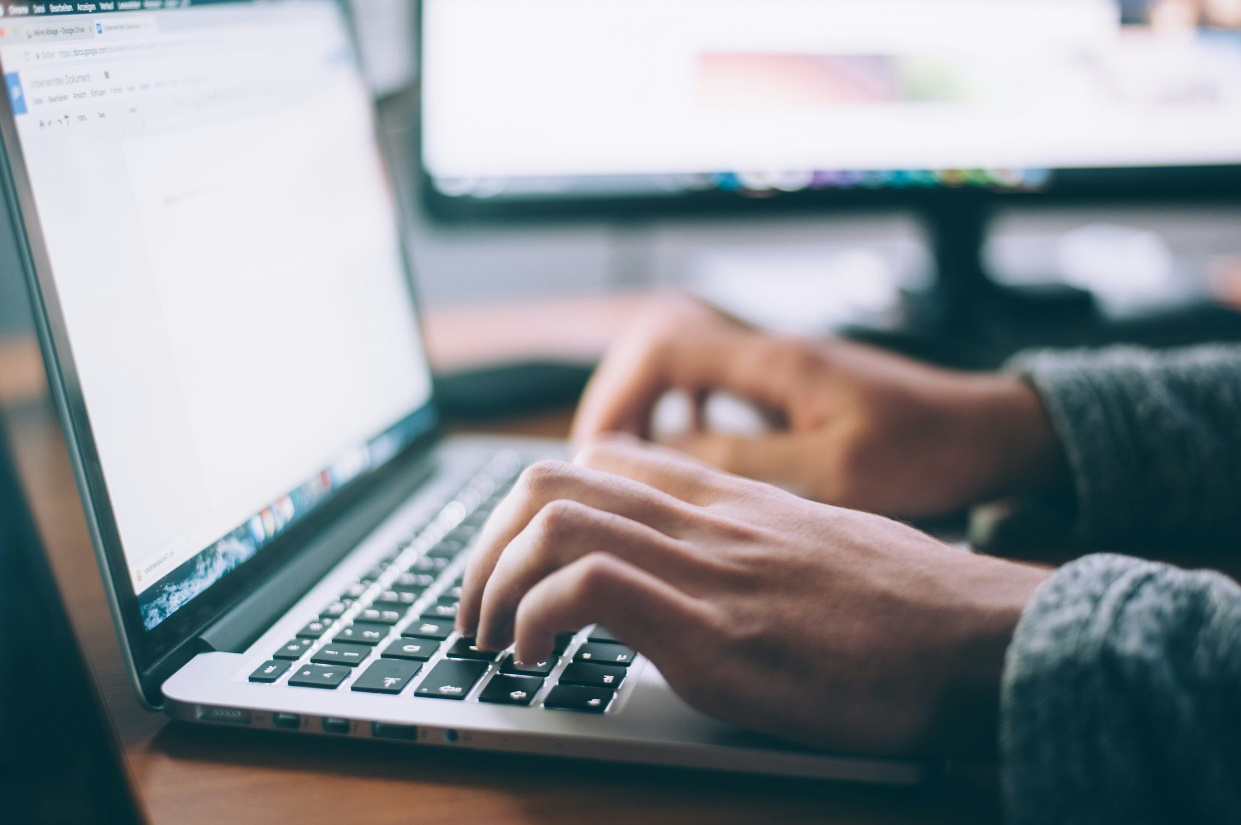
Upgrading to a new laptop is always exciting. Faster speeds, better performance, and a fresh start make it feel like a major upgrade to productivity. But before you can enjoy your new device, there’s an important step to tackle: moving your files.
Transferring data isn’t always as simple as dragging and dropping everything onto a flash drive. Done incorrectly, it can lead to corrupted files, lost documents, or even security risks. Over the years, we’ve helped many clients who thought they had everything backed up, only to find out later that their most important files didn’t make it over. That’s why we want to share the safest ways to handle laptop data transfer and computer data transfer without the stress.
Step 1: Take Stock of What You’re Moving
Before starting the transfer, it’s important to decide what data actually needs to come with you. Old laptops often accumulate clutter—files, downloads, and programs that no longer serve a purpose. Take some time to:
- Delete junk files and unnecessary programs.
- Organize documents, photos, and media into clear folders.
- Make a checklist of critical files you can’t afford to lose.
This step prevents you from wasting time and space moving things you no longer need.
Step 2: Back Up Before You Transfer
No matter which method you choose, always create a backup first. If something goes wrong, your data is still safe.
Options for backup include:
- Copying files to an external hard drive.
- Using cloud services like Google Drive, iCloud, or OneDrive.
- Creating a complete system image if you want everything, including apps and settings.
Backing up ensures you’re not putting all your trust in a single transfer attempt.
Step 3: Choose the Right Transfer Method
There are several ways to move data, depending on your needs. The most common include:
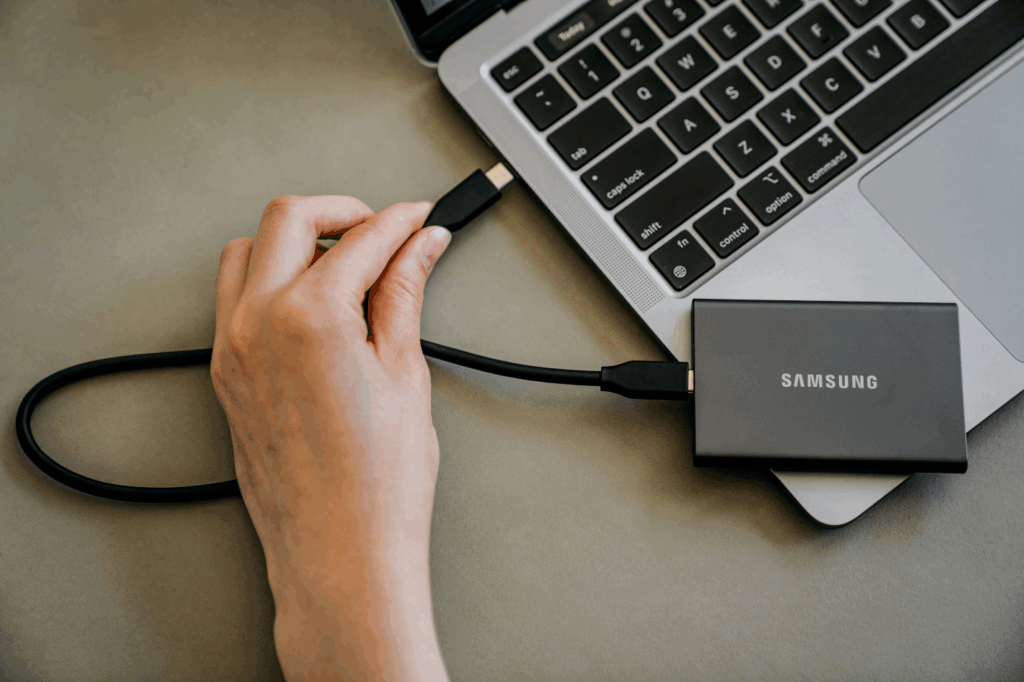
- External Hard Drive or USB Drive
Copy files from your old laptop to the drive, then connect it to your new laptop. This works well for a few gigabytes of data but can be slow for larger transfers. - Cloud Storage
Upload files to the cloud from your old laptop, then download them onto your new one. It’s flexible but depends on internet speed. - Direct Cable Transfer
Special transfer cables or software can connect your old and new laptops for faster, direct movement of files. - Network Transfer
If both laptops are connected to the same Wi-Fi or Ethernet, you can share files directly. This is efficient but requires proper network configuration.
For most people, a mix of an external drive and cloud storage gives the best balance of speed and safety.
Step 4: Double-Check What You Transferred
After copying your files, don’t assume everything made it across. Open documents, photos, and videos on your new laptop to confirm they work correctly. Compare against the checklist you made in Step 1 to be sure nothing important was left behind.
Step 5: Securely Wipe Your Old Laptop
If you’re planning to sell, donate, or recycle your old laptop, don’t forget to wipe the hard drive. Simply deleting files isn’t enough—they can still be recovered. Using a secure erase tool ensures your personal information is completely gone.
Do’s and Don’ts of Data Transfer
Do:
- Back up before starting.
- Organize files into folders before moving them.
- Test files after the transfer.
Don’t:
- Rely on email for large transfers—it’s slow and unreliable.
- Expect programs to transfer like files; most need reinstalling.
- Forget to wipe your old laptop securely.
Ready for a Smooth Transfer?
Moving to a new laptop doesn’t have to be stressful. With preparation, backups, and the right transfer method, you can safely bring everything with you. But if you’d rather skip the hassle, we’re here to help.
At Princeton Computer Repair Service, we provide expert laptop data transfer in Princeton and computer data transfer in Princeton that guarantee your files move securely. From documents and photos to complete system setups, we make sure your new laptop is ready to go without a single missing file.
Call us today or schedule your appointment online. Let us handle the transfer while you enjoy the speed, reliability, and performance of your new laptop, worry-free.