
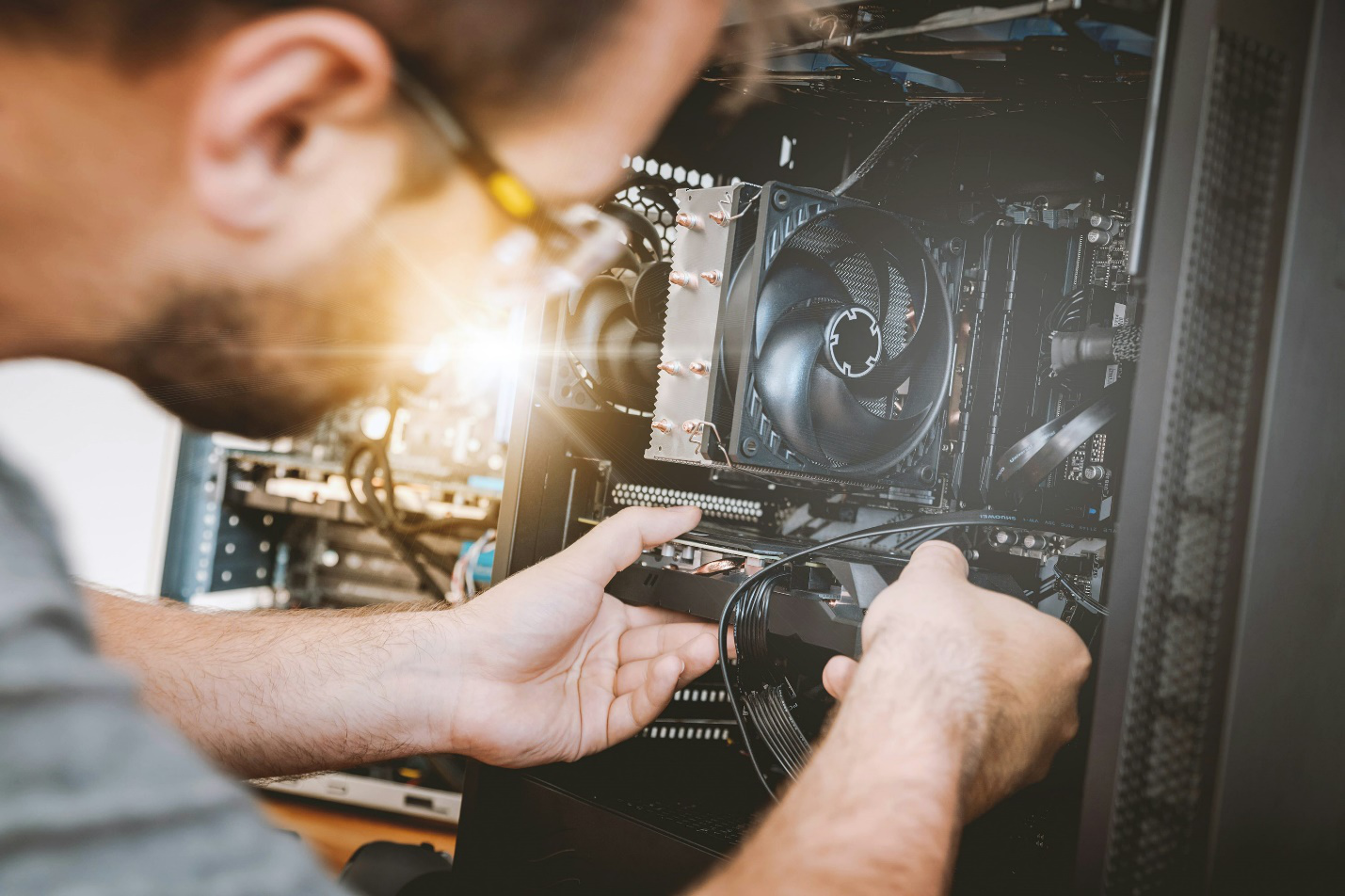
Bringing your computer in for repairs can feel a little nerve-wracking, especially if you depend on it every day for work, school, or personal projects. You want the process to be fast, smooth, and secure. But here’s the thing: a little preparation before your appointment can make all the difference.
Whether you’re scheduling emergency computer repair or routine maintenance, taking the time to back up your data, note down problems, and protect your information ensures that technicians can work efficiently, and you get your computer back faster.
Here’s a simple, practical checklist to prepare your computer before handing it over for service.
1. Back Up Your Data
The first and most important step is backing up your files. Even though professional technicians handle repairs carefully, there’s always a small risk of data loss when hardware or software issues are involved.
How to back up your data:
- Use an external drive:Copy important files—photos, documents, videos—to an external USB or hard drive.
- Cloud backup:Services like Google Drive, Dropbox, or OneDrive let you store your data securely online.
- Full system backup:If you want to be extra cautious, use built-in tools like File History (Windows) or Time Machine (Mac) to create a full system image.
Once your data is backed up, double-check that it’s accessible before dropping off your computer.
2. Note Down All Issues
When you bring your computer in, don’t rely on memory alone. Write down every problem you’ve noticed, even if it seems minor or unrelated. The more detailed your notes, the faster a computer technician in Princeton can diagnose the problem.
Include details like:
- When the issue started (after an update, spill, or crash)
- Any strange noises, error messages, or warning lights
- Specific programs or files that cause lag or crashes
- Whether the issue is constant or occasional
Providing this context saves time and helps the technician focus on the right areas during diagnosis.
3. Remove Sensitive Information

Even though professional repair shops respect your privacy, it’s always smart to remove personal or confidential files before handing over your device.
Here’s how to protect your data:
- Delete or move sensitive files (like financial documents or work projects) to an external or cloud backup.
- Log out of accounts—email, social media, banking, etc.
- Clear browsing history and saved passwords.
- For extra security, encrypt important folders or use password protection where possible.
If your system isn’t booting and you can’t remove your files, let your technician know. Most computer repair services offer secure data recovery or temporary transfers so you can protect your information before repairs begin.
4. Disconnect Accessories
Before your appointment, unplug everything except what you’re bringing for repair. External drives, printers, or USB dongles can easily get lost or damaged if left connected.
Bring only what’s necessary. For desktops, that usually means the tower itself. For laptops, include the charger if power-related issues are part of the problem.
5. Record Serial Numbers and Passwords
Before you hand off your computer, write down your system’s serial number and any passwords a technician might need to access the system.
- Serial number:Usually printed on a label on the back or bottom of your device.
- Passwords:Provide temporary access credentials if required (avoid sharing personal logins you use for other services).
If you’re uncomfortable sharing your login, ask your technician if they can perform diagnostics in a guest or admin account instead.
6. Turn Off Security Software (If Advised)
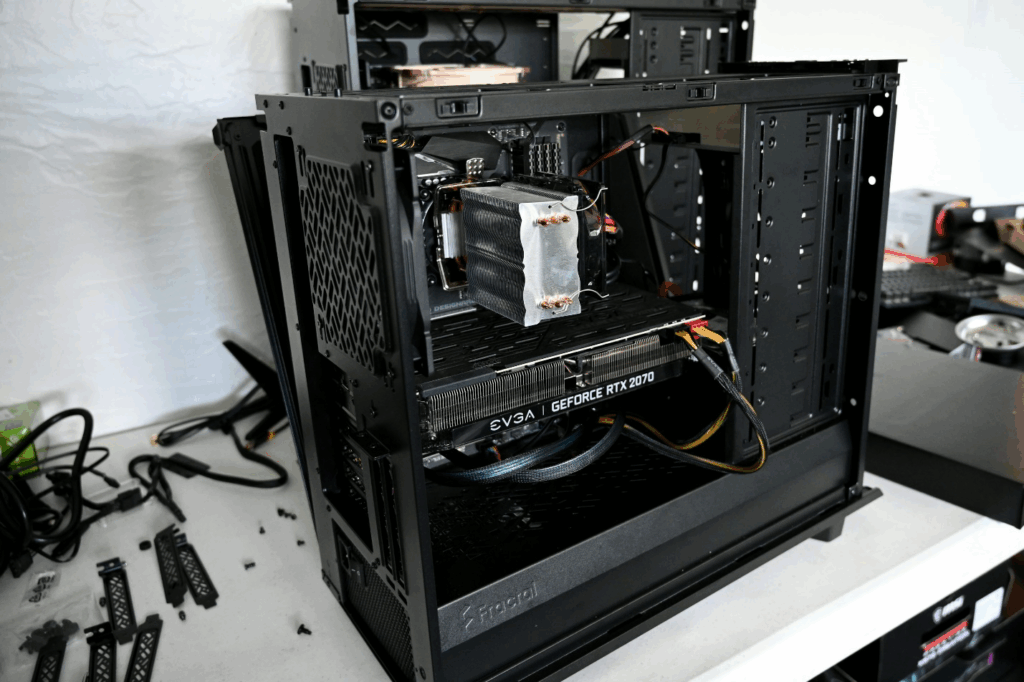
Antivirus programs and firewalls sometimes interfere with diagnostic tools. If your technician asks you to, temporarily disable them before dropping off your system. This step helps them run full hardware and software scans without interruptions.
7. Describe Any Previous Repairs or Upgrades
If you’ve had work done before, like computer setup in Princeton, data recovery, or hardware replacements, let your technician know. Details like replaced parts, past overheating issues, or software reinstalls help them understand your system’s repair history.
We’ll Handle the Rest — Expert Repair, Honest Service
Once your computer is ready for service, our technicians at Princeton Computer Repair Service will take care of the rest. From quick diagnostics to full system restoration, we handle everything with precision and care.
Whether you’re dealing with a system crash, virus infection, or urgent performance issue, our emergency computer repair in Hamilton is here to get you back up and running fast. With experienced computer technicians and transparent repair practices, you can trust your system is in capable hands.
Call us today or book your repair appointment online for a stress-free experience. We’ll diagnose the problem, protect your data, and return your computer running better than ever.