

Few things test your patience like a slow computer. You click an icon, and it takes forever to open. You type, and the words appear seconds later. Before you start browsing for a new machine, let’s pause for a moment, because in most cases, you don’t need a replacement. You just need to give your system some attention.
As someone who handles computer repair in Manville every day, I can tell you that most “slow computer” complaints come down to maintenance. A little cleanup and a few smart tweaks can make even older systems feel new again.
Here’s a step-by-step guide to help you speed up your slow computer without replacing it.
Step 1: Clean Out the Junk Files
Over time, your computer collects digital clutter, temporary files, old downloads, cache data, and unused programs, that eat up space and slow things down.
Here’s what to do:
- Empty your Recycle Bin.It sounds obvious, but people forget this step all the time.
- Use Disk Cleanup or Storage Sense (on Windows)or Optimize Storage (on macOS) to automatically delete unnecessary temporary files.
- Uninstall programs you never use.Check your applications list and remove anything you don’t recognize or need.
Step 2: Limit Startup Programs
When your computer takes forever to boot up, startup programs are usually to blame. Many applications automatically load when you turn on your system—even if you don’t use them immediately.
Here’s how to fix it:
- On Windows, open Task Manager → Startup tab → Disable unnecessary items.
- On Mac, go to System Preferences → Users & Groups → Login Items → Remove unwanted apps.
By trimming startup programs, you’ll drastically cut your boot time and reduce background processing.
Step 3: Check for Malware and Viruses
Malware doesn’t just steal data, it can slow your system to a crawl. Even if you have antivirus software, it’s wise to run a deep scan occasionally.
If your computer is still sluggish after cleanup, schedule a virus removal with a professional. Some infections hide deep within the system and resist standard tools. A technician can scan and clean your drive using advanced diagnostic software that goes beyond everyday antivirus programs.
Step 4: Manage Background Processes

Your system runs dozens of background processes that can eat up memory and CPU power.
How to manage them:
- Open Task Manager (Windows) or Activity Monitor (Mac) to see which apps consume the most resources.
- Close browsers with multiple tabs or extensions.
- Disable visual effects and animations that add unnecessary load.
Step 5: Clean the Hardware (Yes, Literally)
Dust isn’t just a cosmetic issue—it can block airflow and cause your system to overheat. An overheated CPU automatically slows down performance to prevent damage.
How to clean safely:
- Turn off and unplug your computer.
- Use compressed air to blow out vents, fans, and keyboards.
- For desktops, gently remove the side panel and clear dust around fans and power supplies.
If your system feels unusually warm or the fans are loud, professional computer maintenance can help. Technicians clean internal components, replace thermal paste, and check cooling efficiency.
Step 6: Free Up Storage Space
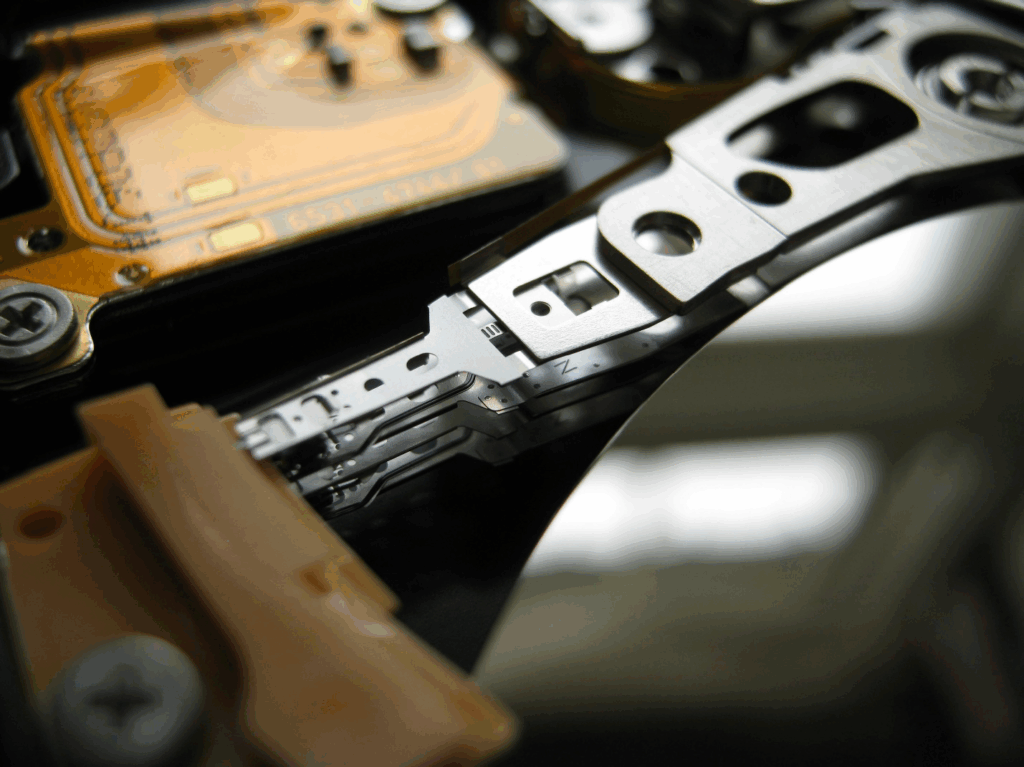
Your computer needs breathing room. When your hard drive or SSD is nearly full, performance tanks because there’s no space for temporary files or virtual memory.
Try this:
- Delete or move large files (videos, installers, backups) to an external drive or cloud storage.
- Clear your Downloads and Documents folders.
- Empty browser caches.
For older systems, upgrading to an SSD can make a world of difference. If you’re still running a mechanical hard drive, consider a computer upgrade in Princeton. SSDs are faster, quieter, and far more reliable.
Step 7: Get a Professional Tune-Up
If you’ve tried all these steps and your computer still feels sluggish, there may be deeper hardware or software issues at play. Aging hard drives, failing memory modules, or corrupted system files can slow things down beyond what basic fixes can handle.
That’s when professional help makes all the difference.
A computer repair in Ewing can run full diagnostics, clean the system internally, and apply optimizations that restore speed and reliability without replacing your device.
Let’s Bring Your Computer Back to Life
At Princeton Computer Repair Service, we specialize in pc repair, virus removal in Princeton, and computer maintenance that breathe new life into slow systems. Whether it’s a dusty fan, bloated software, or an aging hard drive, we’ll identify the cause and fix it fast.
Call us today or book your tune-up online to speed up your computer safely and affordably. Don’t replace it, restore it.