
Buying a new laptop is exciting, faster speed, smoother performance, and more storage. But before you can enjoy it, you need to safely move everything from your old laptop. A careless approach can risk losing important files, photos, or software.
In this guide, I’ll walk you through laptop data transfer methods that ensure your data moves over safely without headaches.
Step 1: Back Up Before You Begin
Before you start transferring anything, create a backup of your old laptop. Use an external hard drive, a USB drive, or a reliable cloud service. This ensures that even if something goes wrong during the computer data transfer in Princeton process, your files remain safe.
- Do:Double-check that your backup is complete.
- Don’t:Assume your files are safe without verifying.
If you’re dealing with a large amount of data or sensitive business files, consider asking a computer technician in Princeton to set up a secure backup for you.
Step 2: Decide on the Transfer Method
Not all transfer methods are equal. The right choice depends on your comfort level, the amount of data, and the type of files.
- External Hard Drive or USB:Good for quick transfers. Copy your folders onto the device, then plug it into the new laptop.
- Cloud Storage Services:Services like Google Drive or OneDrive let you upload and then download your files. Works best with a stable internet connection.
- Direct Transfer via Cable or Network:If both laptops are available, a cable or network installation in Princeton can make the transfer much faster.
Step 3: Transfer Installed Programs and Settings
Many users forget that transferring files is only half the battle. You may also need your apps, software, and preferences. While some programs can simply be reinstalled, others may require manual license transfers.
- Do:Keep installation files and license keys handy.
- Don’t:Skip over settings, you’ll waste hours reconfiguring later.
A professional computer upgrade service can help migrate programs properly, ensuring everything works smoothly on your new laptop.
Step 4: Verify Your Files on the New Laptop
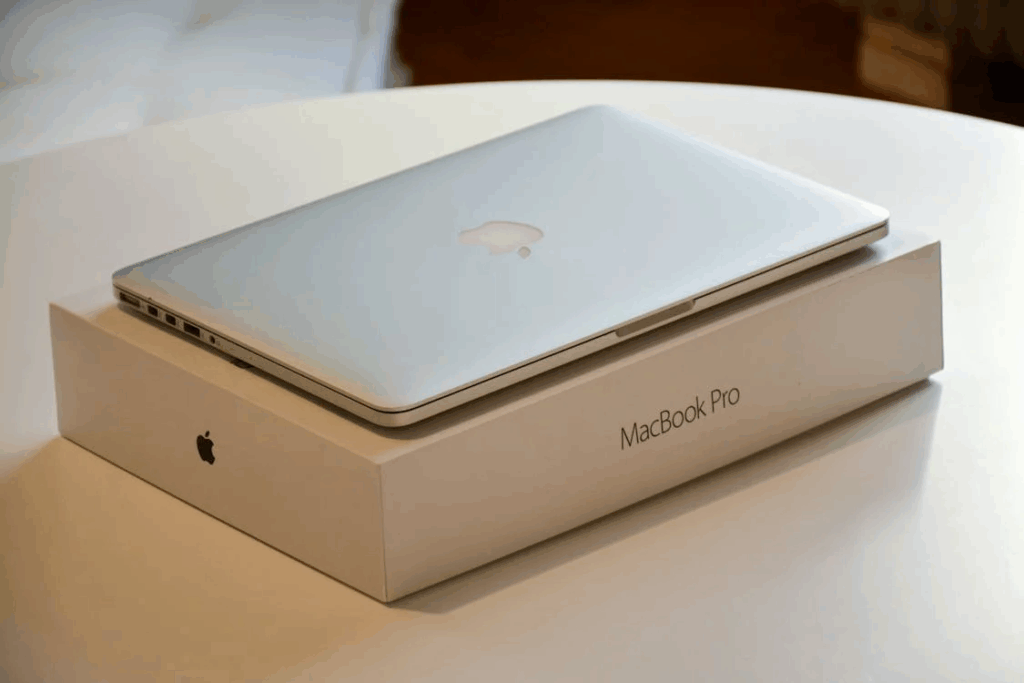
Once the transfer is complete, check everything on your new laptop. Open documents, view images, and confirm software installations. Missing a single folder now could create problems later.
- Do:Compare folders from old and new laptops.
- Don’t:Delete the backup yet, you may still discover missing files later.
When to Call a Professional
Sometimes, doing it yourself isn’t the safest route. If your old laptop has failing hardware, corrupted files, or a damaged screen, or if you’re not confident handling the process, calling a pc technician can save you time and prevent costly mistakes. Professionals can also assist with data recovery if your old laptop isn’t functioning well.
Ready for a Smooth Laptop Transition?
Don’t let the excitement of a new laptop be overshadowed by stress over lost files. Whether you need help with laptop data transfer in Princeton or want to ensure your apps and files are fully functional on your new system, we’re here to make the process seamless.
Contact Princeton Computer Repair Service today for expert help with secure laptop transfers, professional installations, and reliable support.
Call us now to protect your data and enjoy your new laptop worry-free!